2mins read
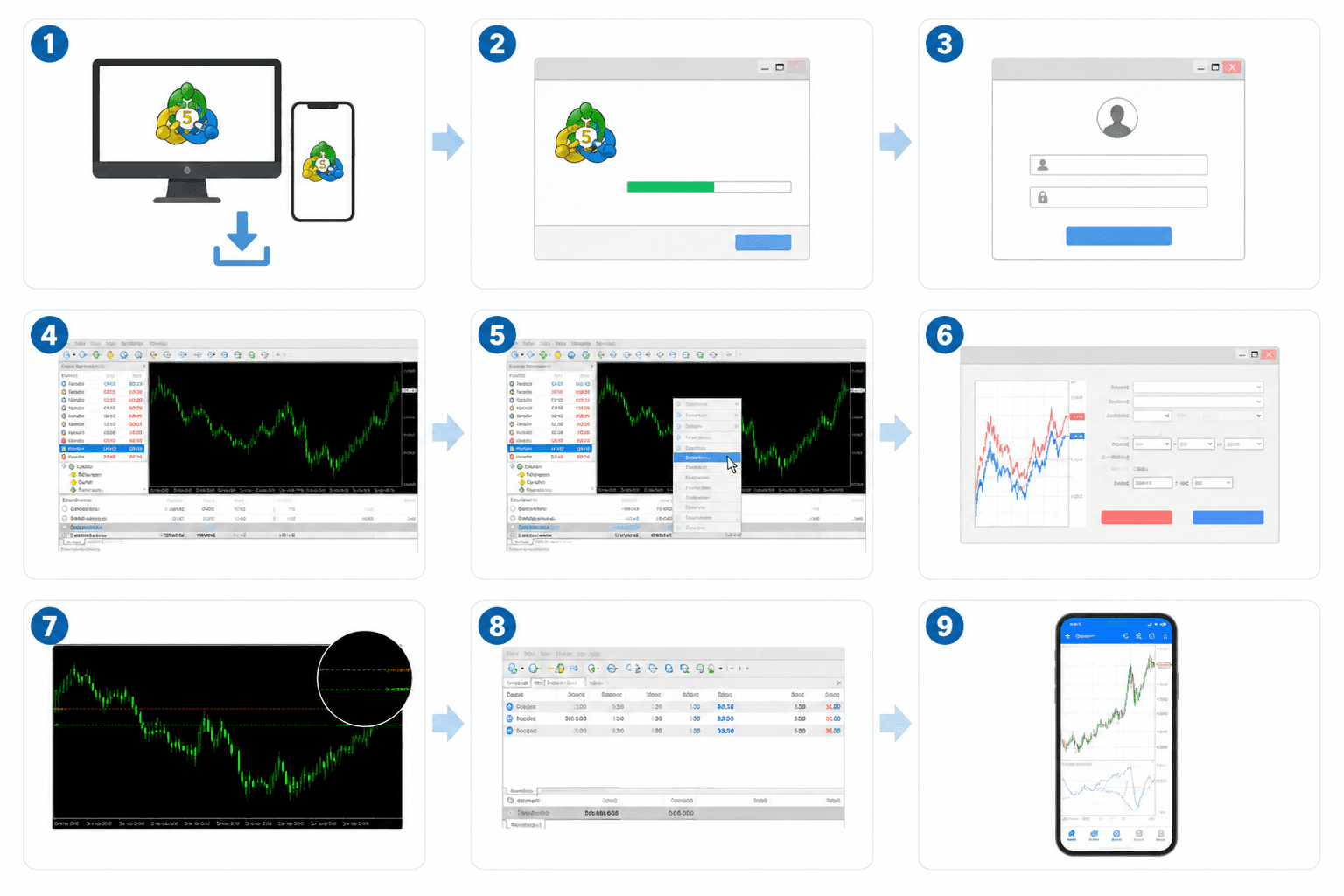
MetaTrader 5 (MT5) is one of the most powerful and widely used trading platforms in the world. Developed by MetaQuotes Software, MT5 allows traders to access global financial markets including Forex, Stocks, Commodities, Indices, Cryptocurrencies, and CFDs — all from a single platform. Whether you are a complete beginner looking to open your first demo account, or an experienced trader wanting to use advanced tools like automated Expert Advisors (EAs), this guide will walk you through every step of getting started and mastering MT5.
Step 1: Download MetaTrader 5
The first step is to download the MT5 platform. You can get it directly from the official MetaQuotes website or your broker's website.
Option A — Download from MetaQuotes Official Website
1. Open your browser and go to: www.metatrader5.com
2. Click on the Download button for your operating system (Windows / macOS).
3. Save the installer file to your computer.
Option B — Download from Your Broker's Website
4. Log in to your broker account (e.g., IC Markets, XM, Pepperstone, etc.).
5. Navigate to the Platforms or Trading Platforms section.
6. Select MetaTrader 5 and download the installer for your device.
💡 Tip: Always download MT5 from your broker's official website to ensure you get the correct server connection pre-configured.

Fig 1.1 — MetaTrader 5 Download Page (Official Website or Broker Site)
📌 Note: MT5 is also available as a web-based platform (WebTerminal) — no installation required. Simply visit your broker's web trader link in any modern browser.
Step 2: Install MetaTrader 5
Once the installer is downloaded, follow these steps to install MT5 on your computer.
Windows Installation
7. Locate the downloaded file (usually mt5setup.exe) in your Downloads folder.
8. Double-click the installer to run it.
9. Click Yes if prompted by Windows User Account Control (UAC).
10. Read and accept the License Agreement, then click Next.
11. Choose your installation folder or leave it as default.
12. Click Install and wait for the installation to complete.
13. Click Finish — MT5 will launch automatically.

Fig 2.1 — MT5 Setup Wizard Installation Screen
Mobile Installation (iOS / Android)
• iOS: Open the App Store, search MetaTrader 5, and tap Get / Install.
• Android: Open the Google Play Store, search MetaTrader 5, and tap Install.
💡 Tip: On mobile, the MT5 app looks slightly different but works in exactly the same way. Most features are available on the app.
Step 3: Login or Open a Demo Account
When MT5 launches for the first time, you need to connect it to a trading account. You have two options: open a free Demo Account (recommended for beginners) or log in with an existing Live Account.
Opening a Free Demo Account
14. On the MT5 login screen, click Open Account or go to File > Open an Account.
15. Search for your broker by name in the search box.
16. Select your broker's server from the list and click Next.
17. Fill in your personal details (Name, Email, Leverage, Deposit amount).
18. Click Open Account — you will receive a login ID and password.
19. MT5 will log you in automatically to your new demo account.
Logging into an Existing Account
20. Open MT5 and go to File > Login to Trade Account.
21. Enter your Account Number (Login ID).
22. Enter your Password.
23. Select the correct Server from the dropdown list.
24. Click Sign In.

Fig 3.1 — MT5 Login Screen and Demo Account Registration
📌 Note: A Demo Account uses virtual money and real market conditions. It is perfect for practicing without any financial risk.
Step 4: Understanding the MT5 Interface
Once logged in, you will see the main MT5 workspace. Understanding each panel is essential for efficient trading.

Fig 4.1 — MT5 Main Interface Overview with Key Panels Highlighted
Key Areas of the MT5 Interface
Market Watch | Left panel showing real-time quotes for all instruments. Right-click to add/remove symbols. |
Navigator | Left panel below Market Watch — shows your accounts, indicators, EAs, and scripts. |
Chart Window | The main area where price charts are displayed. You can open multiple charts. |
Toolbox / Terminal | Bottom panel with 5 tabs: Trade, History, Alerts, Mailbox, Journal. |
Menu Bar | Top menu with File, View, Insert, Charts, Tools, Window, Help options. |
Toolbar | Quick-access buttons for chart types, zoom, indicators, and drawing tools. |
💡 Tip: Press Ctrl+T to toggle the Toolbox panel. Press F4 to open the MetaEditor (for coding EAs).
Step 5: Opening and Customizing Charts
Charts are the heart of trading in MT5. Here is how to open, switch, and customize charts to suit your trading style.
How to Open a New Chart
25. In the Market Watch panel, find the symbol you want (e.g., EURUSD, Gold, BTC).
26. Double-click on the symbol, or right-click and choose Chart Window.
27. The chart will open in the main workspace.
28. To open multiple charts, repeat for other symbols — they tile or stack as tabs.
Changing Chart Timeframes
At the top of each chart, you will see timeframe buttons: M1, M5, M15, M30, H1, H4, D1, W1, MN. Click any button to switch the timeframe instantly.
Switching Chart Types
• Candlestick Chart: Most popular. Shows Open, High, Low, Close for each period.
• Bar Chart: Similar to candlestick but uses vertical bars.
• Line Chart: Simple line connecting closing prices.

Fig 5.1 — MT5 Chart Window with Timeframe Options and Chart Types
Chart Customization
• Right-click on the chart and select Properties to change colors, background, and grid.
• Use Ctrl+Scroll to zoom in and out on any chart.
• Drag the chart left and right to navigate historical price data.
💡 Tip: Use the F8 key to quickly open Chart Properties for the active chart.
Step 6: Placing a Trade
This is the most important step — how to actually place buy and sell orders in MT5. There are several order types available.
How to Open the Order Window
29. Press F9 on your keyboard, OR
30. Click the New Order button in the toolbar, OR
31. Right-click on a chart and select Trading > New Order.

Fig 6.1 — MT5 New Order Window with Buy/Sell, Volume, SL, and TP Fields
Order Types in MT5
Market Order | Executes immediately at the current market price. Use Buy or Sell buttons. |
Limit Order | Opens a trade at a specific price better than current (Buy Limit / Sell Limit). |
Stop Order | Opens a trade when price reaches a worse level (Buy Stop / Sell Stop). |
Stop Limit | Combines stop and limit — triggers at stop price, then places a limit order. |
Steps to Place a Market Order
32. In the Order Window, select the Symbol (e.g., EURUSD).
33. Set the Volume (lot size). Standard lot = 1.0, Mini lot = 0.1, Micro lot = 0.01.
34. Set Stop Loss (SL) — price level to limit your loss.
35. Set Take Profit (TP) — price level to lock in profit.
36. Add a Comment (optional) to label the trade.
37. Click Buy (blue button) to go Long, or Sell (red button) to go Short.
📌 Note: Stop Loss and Take Profit are optional but highly recommended for risk management. Never trade without knowing your maximum risk.
Step 7: Using Indicators and Drawing Tools
MT5 comes with 38 built-in technical indicators and a full suite of drawing tools. These help you analyze price action and identify trading opportunities.
Adding Technical Indicators
38. Click on Insert in the top menu bar, then select Indicators.
39. Choose a category: Trend, Oscillators, Volumes, Bill Williams, or Custom.
40. Select your indicator (e.g., Moving Average, RSI, MACD, Bollinger Bands).
41. Configure the indicator settings in the popup window.
42. Click OK — the indicator will appear on your chart.

Fig 7.1 — MT5 Indicators Menu and Drawing Tools Panel
Popular Built-in Indicators
• Trend direction and dynamic support/resistance. Moving Averages (MA)
• Overbought and oversold conditions. RSI (Relative Strength Index)
• Trend momentum and crossover signals. MACD
• Volatility and price range analysis. Bollinger Bands
• Momentum comparison for entry timing. Stochastic Oscillator
Using Drawing Tools
The drawing toolbar (usually on the left side or under Insert > Objects) lets you draw directly on charts:
• Trend Lines — draw support and resistance lines
• Fibonacci Retracement — identify key retracement levels
• Horizontal Lines — mark price levels
• Channels & Rectangles — define trading ranges
• Text & Arrows — annotate chart patterns
💡 Tip: Press Ctrl+Z to undo any drawing. Double-click on any drawn object to edit its properties.
Step 8: Managing Your Open Positions
After placing trades, you need to monitor and manage them properly. The Terminal panel at the bottom of MT5 is your trade management hub.
The Trade Tab
Click on the Trade tab in the Terminal panel to see:
• All open positions with entry price, current price, and floating P&L
• Your account Balance, Equity, Margin, and Free Margin
• Pending orders waiting to be triggered
Modifying an Open Trade
43. Right-click on a position in the Trade tab.
44. Select Modify or Delete Order.
45. Update your Stop Loss or Take Profit price.
46. Click Modify — the changes apply instantly.
Closing a Trade
47. Right-click the position in the Trade tab.
48. Select Close Position.
49. In the popup, click Close at the current price.
Partial Close
50. Right-click the position and select Close Position.
51. Reduce the volume to close only part of the trade.
52. Click Close — the remaining lot stays open.
📌 Note: Monitor your Margin Level carefully. If it drops below your broker's margin call level, positions may be closed automatically.
Bonus: Advanced MT5 Features
Expert Advisors (EAs) — Automated Trading
MT5 supports automated trading robots called Expert Advisors (EAs). These are programmed strategies that open and manage trades automatically.
• Go to Navigator > Expert Advisors to see installed EAs.
• Drag an EA onto a chart to attach it.
• Enable Algo Trading in the toolbar to allow EAs to trade.
• Use the Strategy Tester (Ctrl+R) to backtest EAs on historical data.
Alerts and Notifications
Set price alerts so MT5 notifies you when specific levels are hit.
• Go to Terminal > Alerts tab and click the + button to create a new alert.
• Set the Symbol, Condition (e.g., Bid > 1.0850), and Action (Sound, Email, Notification).
• Enable mobile push notifications in Tools > Options > Notifications.
One-Click Trading
For fast execution, enable One-Click Trading on the chart.
• Right-click on the chart and select One Click Trading.
• A small panel appears at the top-left of the chart with Buy and Sell buttons.
• Click Buy or Sell to instantly open a trade at the current volume setting.
Multiple Monitor / Chart Layout
MT5 supports multiple chart layouts to monitor many instruments simultaneously.
• Go to Window in the menu to arrange charts: Tile Horizontally, Tile Vertically, or Cascade.
• Save your entire chart layout with File > Save Chart Layout.
• Load it anytime with File > Open Chart Layout.
Frequently Asked Questions (FAQ)
Is MetaTrader 5 free to use?
Yes, MT5 is completely free to download and use. You only need a trading account with a broker that supports MT5 to start trading.
What is the difference between MT4 and MT5?
MT5 is the newer, more advanced platform. Key differences: MT5 supports more asset classes (Stocks, Options, Futures), has more built-in indicators (38 vs 30), has a better Strategy Tester, and supports hedging and netting account types. MT4 is still popular for Forex-only trading.
Can I use MT5 on my phone?
Absolutely. The MetaTrader 5 app is available on iOS (App Store) and Android (Google Play) for free. The mobile version supports charting, trading, account management, and alerts.
How many charts can I open at once?
MT5 allows up to 100 charts open simultaneously. You can organize them using the Window menu layout options.
Is demo trading the same as live trading?
Demo trading uses virtual money but real market prices and conditions. The experience is very similar to live trading, making it perfect for practice. The key difference is the psychological pressure of real money in live trading.
How do I install a custom indicator or EA?
Download the .ex5 or .mq5 file. Go to File > Open Data Folder in MT5, then navigate to MQL5 > Indicators (or Experts for EAs). Paste the file there, then right-click in the Navigator panel and select Refresh. Your custom tool will appear in the list.
Related Articles

Forex Strategy
Aug 24, 2026
Candlestick Patterns in Forex: Read Price Action Like a Pro

Forex Strategy
Aug 21, 2026
Position Sizing & Money Management in Forex: Survive and Profit
Forex Trading Basic
Aug 21, 2026
Position Sizing & Money Management in Forex: Survive and Profit

Forex Strategy
Aug 20, 2026
Stochastic Indicator in Forex: Catch Momentum Shifts